Tread+ Pro Activation Quick-Start Guide
How to set up and activate your Peloton Tread+ Pro for commercial use.
What you’ll need
To activate your Peloton Tread+ Pro and commercial subscription, you will need:
- Your fitness facility’s WiFi password
- Your activation passcode (provided in your onboarding email)
Initial Setup & Software
Step 1: Power & Connection
- Select your preferred Language.
- Select your WiFi Network and enter your password.
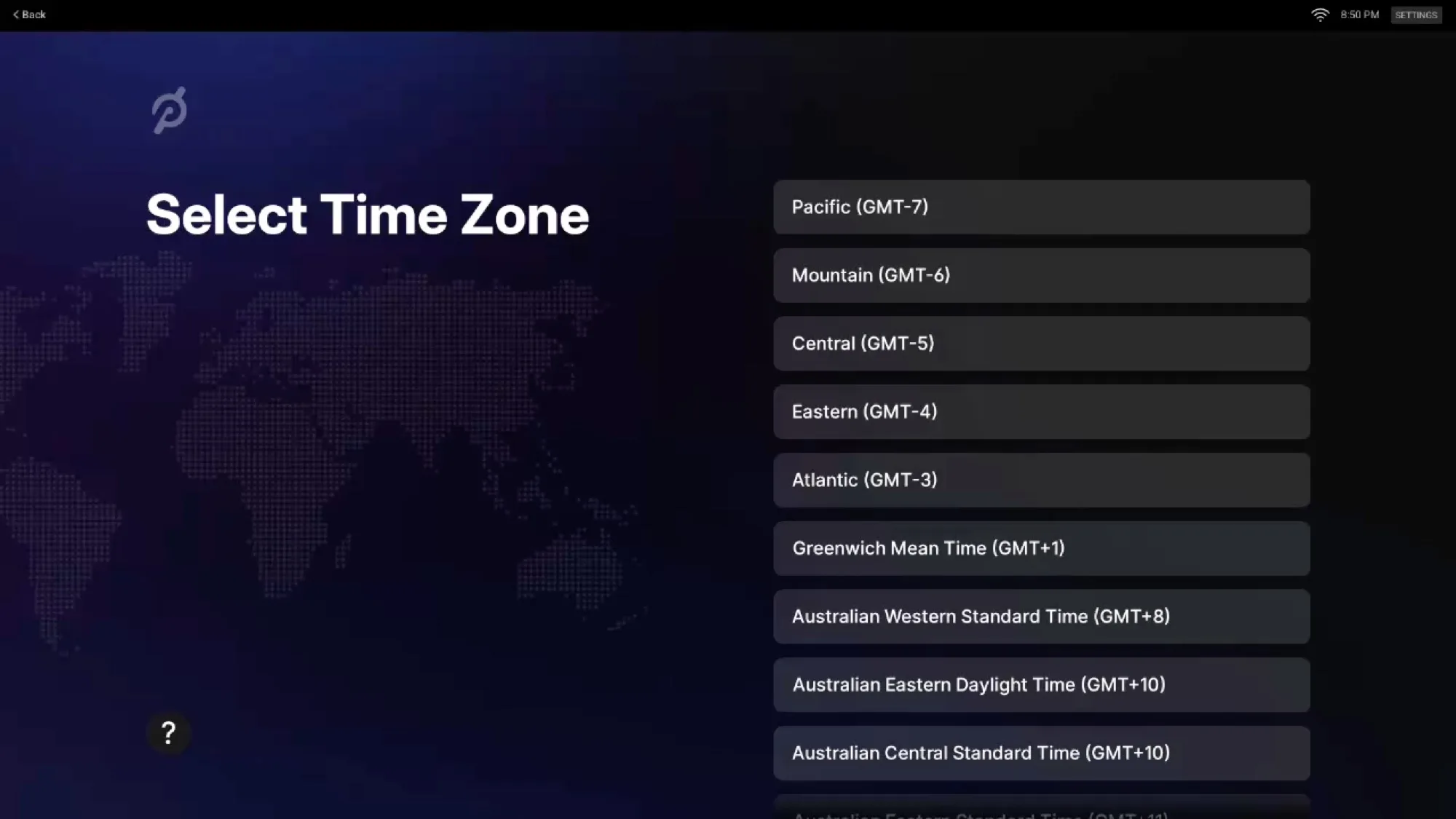
- Select your Timezone.
Step 2: Updates
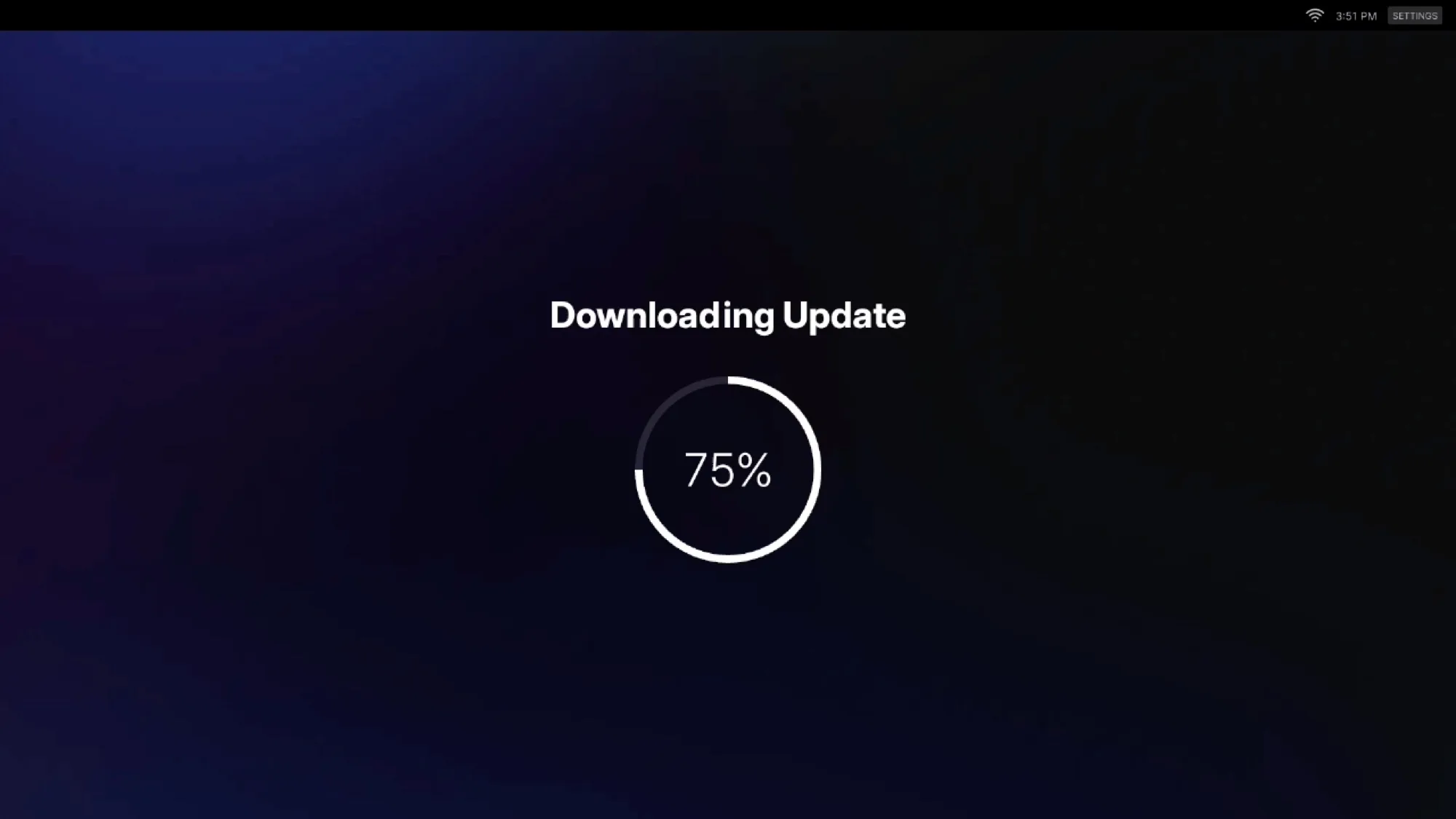
- The device will automatically Download and Install the software update.
- On the following screen, select that you are an Installer.
Note: Both selections will lead through the required equipment checks. - The device will then Download and Install the firmware update.
Step 3: Hardware Inspection & Calibration
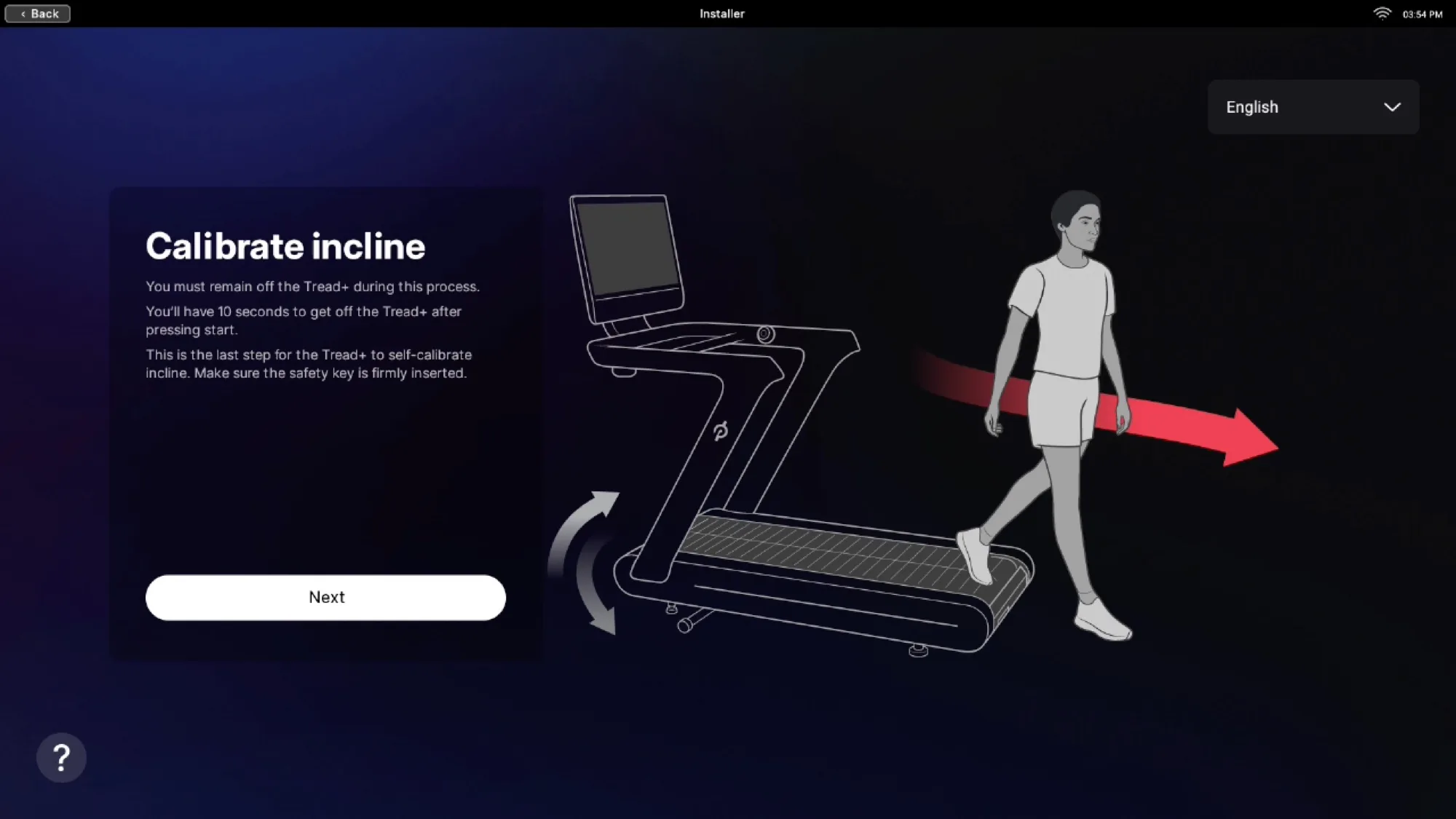
Your installer should have already completed these steps. If you are seeing these steps after install, you can quickly click past them. You’ll see sections for unboxing, safety checks, and component verifications.
- Component Check: Verify all correct screws were used, secure the screen to the VESA plate, and perform a final Cable Check.
- Incline Calibration: Step off the Tread+. The deck will automatically raise to 15% and lower to calibrate.
- Right Knob Test: Increase speed to 3.0 mph to verify motor response.
- Left Knob Test: Increase incline to 3% to verify lift response.
- Rear Guard Test: Drop the rear guard. This should immediately cut power to the Tread+. Reconnecting the guard will power the unit back up.
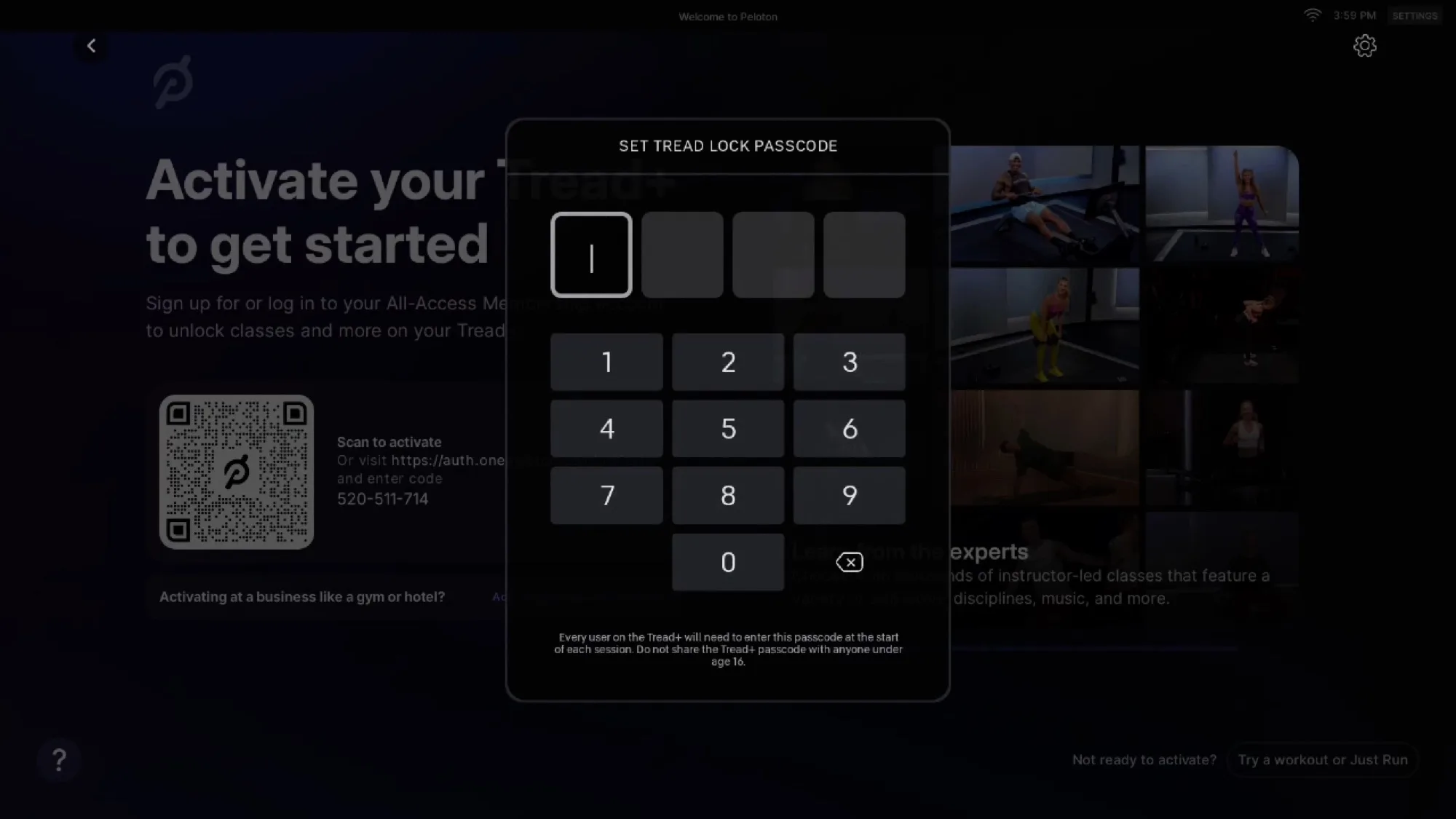
Step 4: Set Tread Lock code.
🚨 This is NOT the same as your 6 digit activation passcode.
- Set Tread Lock code: Enter a four-digit code to secure the device when not in use.
- Confirm code: Re-enter your Tread Lock code to verify.
- IMPORTANT: This pin will not be active for exercisers once you are activated on a commercial subscription. It is only required for set up.
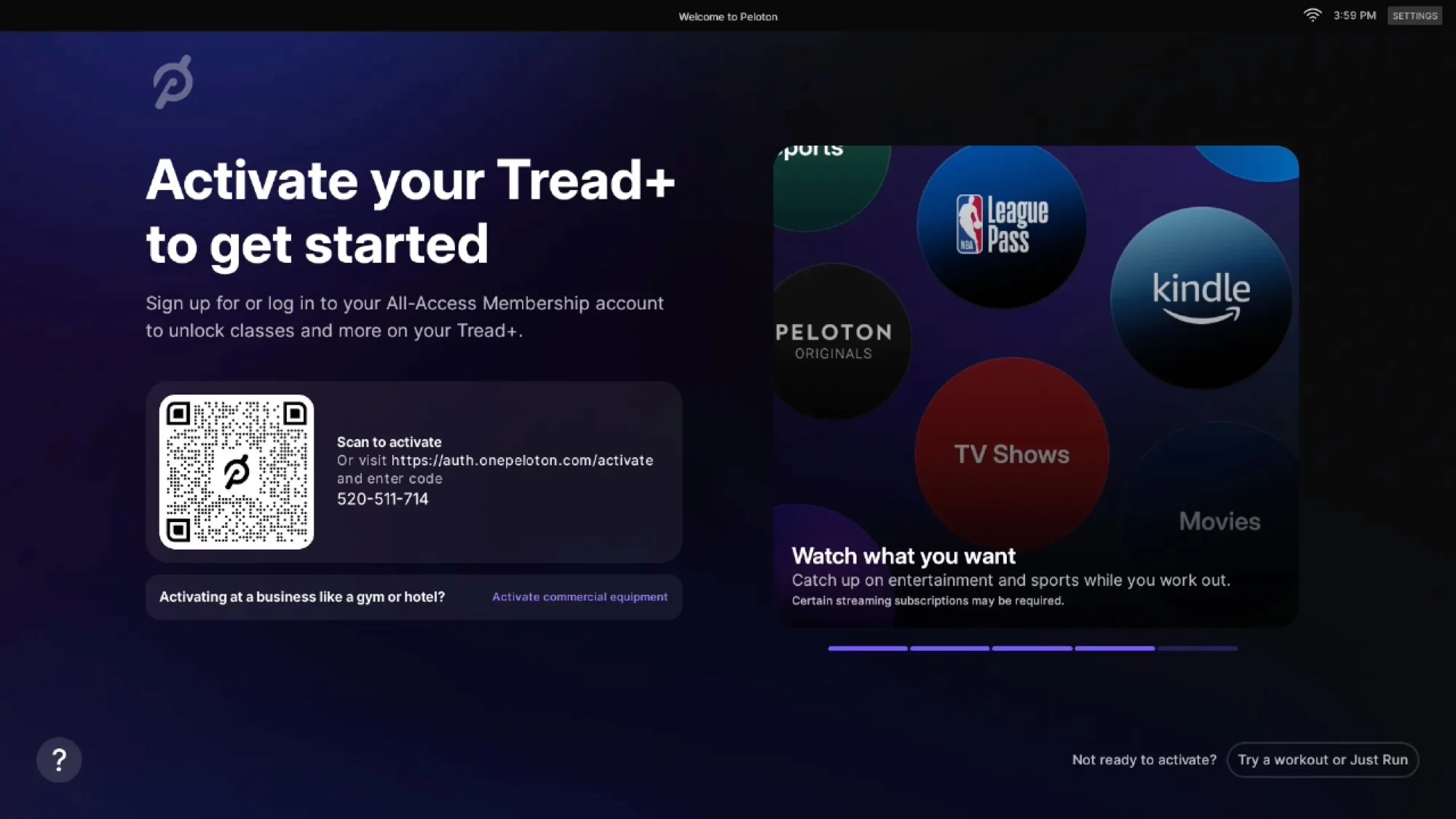
Step 5: Activate Commercial Subscription
Tap Activate Commercial Equipment in the section below the QR code.
🚨 IMPORTANT: Do not scan the QR code or go to the web link. This option is for at-home equipment, not for commercial subscriptions.
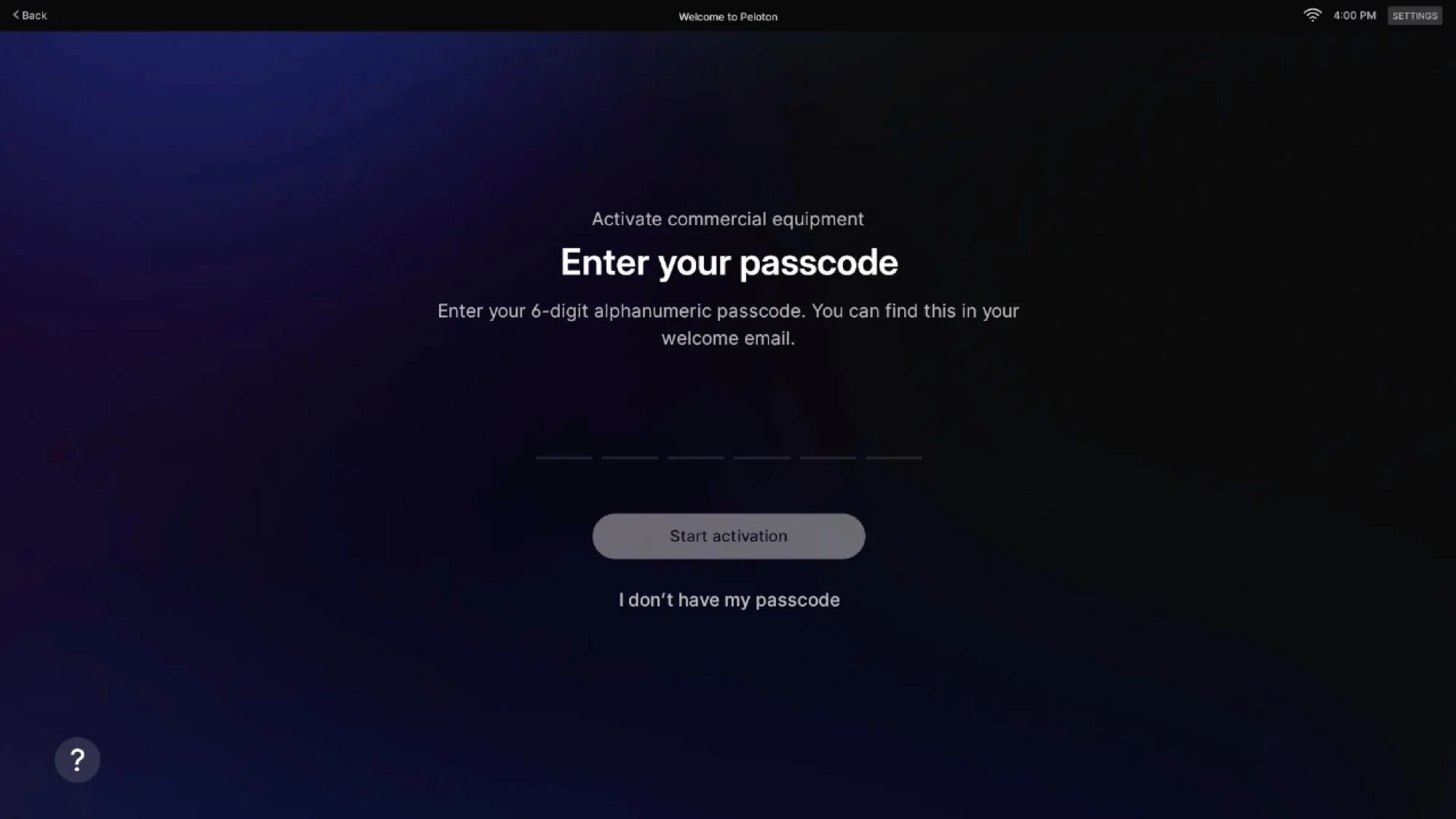
Step 6: Enter Activation Passcode
Enter the six-digit passcode associated with the commercial subscription for your location.
Tap Start Activation.
Note, you will have 1 Passcode for all devices at each location.
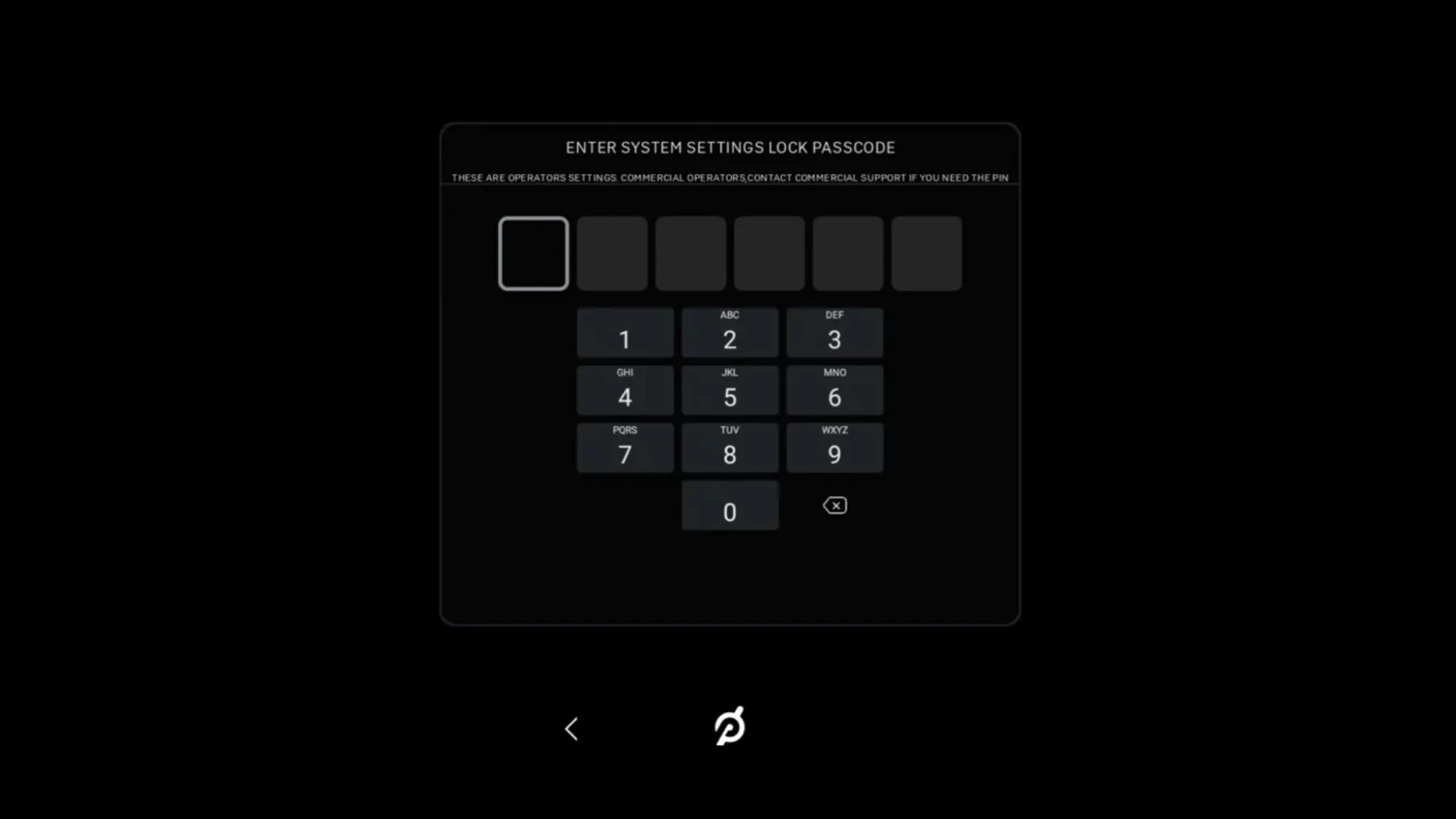
Optional Step 7: Update Device Settings
If you need to edit any device settings such as wifi, click Device Settings. You will be prompted to enter a 6-digit PIN to update device settings, including WiFi and Bluetooth. To access the PIN, please refer to the onboarding documentation email where you found your passcode. Use this PIN any time you’d like to make changes in the future.
Don't know the pin? Contact Commercial Support at 855-662-7356 for help.

Step 8: Reboot Tread+ Pro
You will need to restart (powercycle) the Tread+ Pro to finish activation. Once complete, your Tread+ Pro is ready for use.
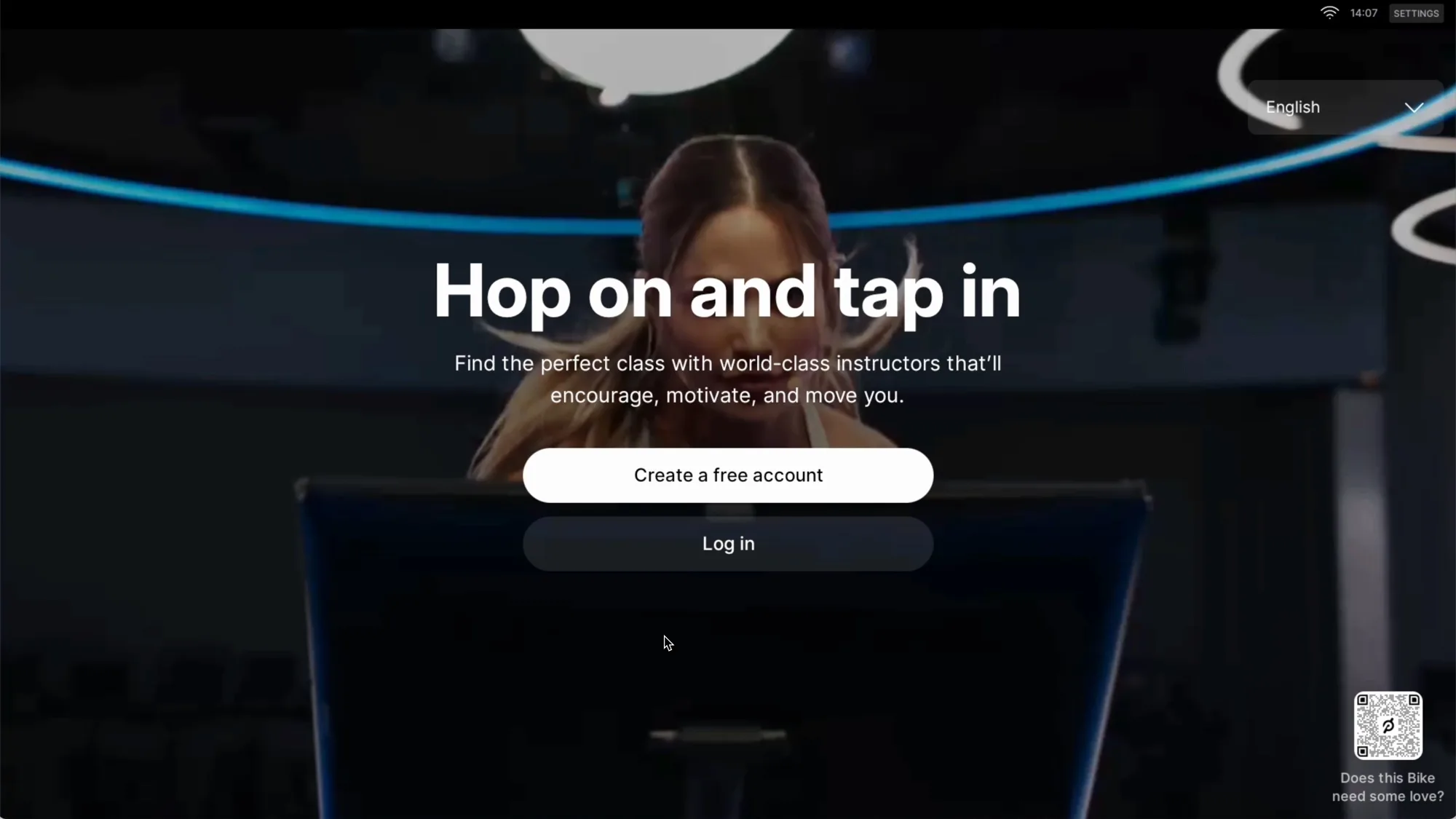
Step 9: Your Tread+ Pro Is Ready For Use!
All done! Consider this the “homepage” for your Peloton Tread+ Pro for commercial use. From this screen, your exercisers can create their own accounts and enjoy the full Peloton experience for free—Peloton Members and first-time Peloton users alike.